Splitting a restaurant bill used to mean passing around a calculator, squinting at a crumpled receipt, and arguing over who had the extra side of guacamole. Someone always overpays. Someone always underpays. And everyone leaves feeling slightly awkward about it.
Now you can skip all of that. Point your phone camera at the receipt, let AI read every line item in seconds, assign items to the people who ordered them, and send each person exactly what they owe. No mental math. No spreadsheets. No "I'll Venmo you later" that never actually happens.
This guide walks through exactly how receipt scanning and automatic bill splitting works, step by step, so you know what to expect before you try it.
How Receipt Scanning Works
Your phone uses two things here: OCR to read the text on the receipt, and AI to figure out what that text actually means (which part is an item name, which is a price, which is tax, etc.).
Here's what happens when you scan a receipt with an app like ReceiptSplit:
- Point your camera at the receipt (or pick a photo you already took from your gallery). You don't need to line it up perfectly or worry about the angle.
- VisionKit detects the document boundaries automatically. Apple's built-in document scanner identifies where the receipt starts and ends, corrects for perspective, and crops it cleanly. No manual cropping needed.
- AI reads every line on the receipt. Not just the text — it understands the structure. It identifies which text is an item name, which is a price, which is a quantity, and which lines are tax, tip, discounts, or the total. This is the part that would take you minutes to do by hand.
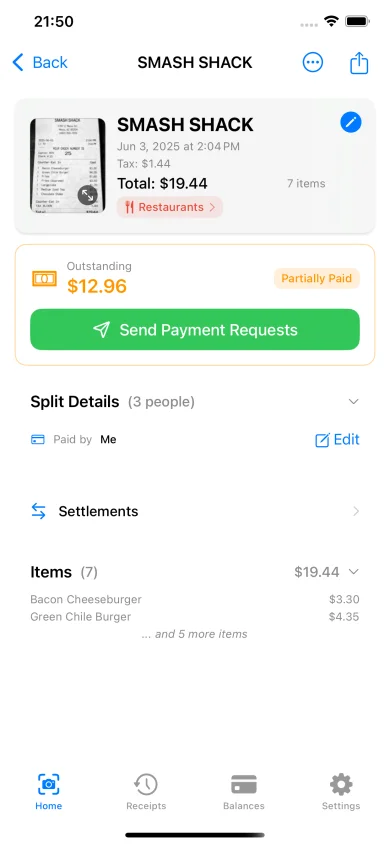
- Results appear as a structured, editable list. Within about three seconds, you see all the items, prices, and totals laid out cleanly. If anything looks off, you can tap to edit it before splitting.
Older OCR could read "12.99" off a receipt but couldn't tell if that was an item price, tax, or the subtotal. AI models understand receipt structure — they know the number next to "Margherita Pizza" is a price, and the number labeled "Tax" at the bottom is tax. That's what makes it actually usable.
What AI Detects on Your Receipt
When AI processes a receipt image, it doesn't just grab random numbers. It builds a structured model of the entire transaction. Here's what gets detected:
- Individual items with prices — each line item is identified separately, even on long receipts with 20+ items
- Quantities — if the receipt says "2x Coffee $4.50" or "Coffee x2," the AI recognizes that as two coffees at $4.50 each, with a line total of $9.00
- Tax amount — identified and separated from the subtotal so it can be split proportionally
- Tip — if a tip is written on the receipt (common with signed credit card receipts), it's detected and included
- Discounts and promotions — happy hour pricing, coupons, percentage-off deals are recognized so the math stays accurate
- Merchant name and date — useful for keeping track of which receipt is which, especially if you're splitting multiple meals on a trip
- Currency — auto-detected from over 150 currencies. Eating in Tokyo? The app recognizes yen. In Berlin? Euros. You never have to set the currency manually
Why does accuracy matter so much? Because if the scan misreads a $12.99 item as $1.29, the entire split is wrong. Modern AI scanning achieves high accuracy across receipt types and languages, but every result is fully editable — so you can always verify and correct before splitting.
From Scan to Split in 30 Seconds
Here's the complete workflow from the moment you pick up the receipt to the moment everyone knows what they owe. The whole process takes about 30 seconds once you've done it a couple of times.
- Open ReceiptSplit and tap "Scan Receipt." You can also choose a photo from your gallery if you already snapped a picture of the receipt. This is handy when someone texts you a photo of the bill.
- Hold your phone steady over the receipt. The camera auto-detects the receipt edges using Apple's VisionKit document scanner. You'll see a blue outline appear around the receipt — that's the app confirming it found the boundaries. Just hold steady for a moment and it captures automatically.
- AI extracts all items in about 3 seconds. The screen transitions to show every line item, price, quantity, and the tax/tip totals. Review the list to make sure everything looks right.
- Add participants from your contacts. Tap to add the people at the table. You can pull from your phone contacts or type names manually. If you eat with the same group regularly, they'll appear in your recent contacts for quick selection.
- Choose your split mode. Three options: Equal (everyone pays the same), By Item (assign specific items to specific people), or By Person (set custom amounts or percentages per person). For most restaurant meals, By Item is the fairest approach.
- Assign items to the people who ordered them. Tap an item, then tap the person (or people) who had it. Shared appetizer? Select everyone who shared it, and the cost splits evenly among them. A pitcher of margaritas for three people? Tap those three. The app handles the math for partial splits automatically.
- Tip and tax are calculated proportionally. This is the part that's nearly impossible to do quickly by hand. If Alex's items add up to 30% of the subtotal, Alex pays 30% of the tax and 30% of the tip. No more equal-splitting the tax when one person ordered twice as much as everyone else. Need to figure out the tip amount first? Use our free tip calculator. You can also read more about why proportional splitting matters.
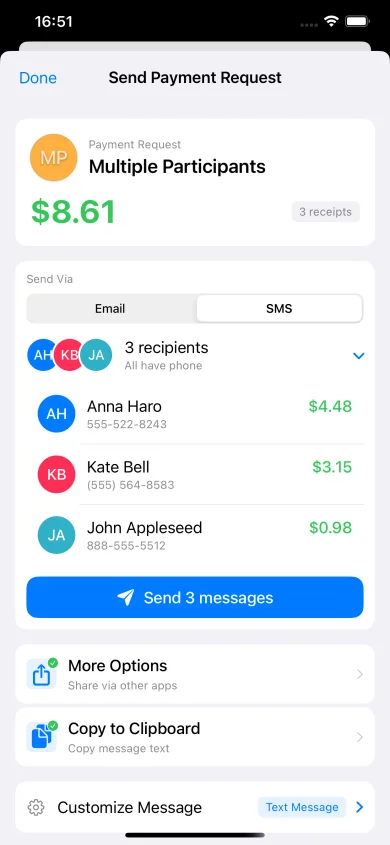
- Send via SMS, email, or share sheet with payment links. Each person gets a clear breakdown of what they ordered and what they owe, along with a link to pay you directly.
Send Payment Requests Instantly
Calculating the split is only half the problem. The other half is actually getting paid.
ReceiptSplit supports 8 payment methods: Venmo, PayPal, Cash App, Revolut, Apple Pay, BLIK, bank transfer, and cash. For Venmo, PayPal, and Cash App, payment requests include web links pre-filled with the exact amount owed — the recipient taps the link, it opens their payment app, and the amount is already there. No retyping, no rounding errors, no "wait, how much was it again?" messages two days later.
You can share payment requests through SMS, email, PDF, or any messaging app on your phone — WhatsApp, iMessage, Telegram, whatever your group uses. The recipient gets an itemized breakdown showing exactly what they ordered and how the tax and tip were calculated. Full transparency means fewer disputes.
The best part: recipients don't need the app. They receive a clean summary with a payment link. They don't have to download anything, create an account, or sign up for a service. They just see what they owe and tap to pay.
Works Offline Too
Not every dinner happens somewhere with great cell service. Maybe you're at a cabin in the mountains, a beach restaurant with spotty Wi-Fi, or just in a building with bad reception. The AI scanning feature requires an internet connection because the image processing happens on a secure server, but everything else in the app works completely offline.
Without internet, you can:
- Add items manually — type in each item name and price from the receipt
- Add participants — create your group and assign items
- Calculate splits — all the math (proportional tax, tip, per-person totals) runs locally on your device
- Save the split — it's stored on your phone and you can send payment requests later when you're back online
Manual entry takes a bit longer than scanning, but it's always available as a fallback. And if you frequently split bills at places with poor connectivity, you can take a photo of the receipt and scan it later when you have a connection.
Privacy and Security
Receipt images contain sensitive information — where you eat, what you spend, who you're with. That's why privacy matters in a receipt scanning app.
Here's how ReceiptSplit handles it:
- No account needed. You don't sign up, create a profile, or hand over your email. Open the app and start using it immediately.
- Receipt images are processed via a secure proxy. The image goes through an encrypted connection to be processed by AI, and it's never stored on any server. Once the text is extracted, the image data is discarded on the server side.
- No tracking, no ads, no data sold. There are no analytics trackers following your behavior, no advertising SDKs, and your data is never sold or shared with third parties.
- All data stays on your device. Your receipts, splits, participants, and payment history are stored locally on your iPhone. If you delete the app, the data goes with it.
Short version: Your data stays on your phone. Receipt images are processed securely and never stored. No ads, no profiling.
Frequently Asked Questions
How accurate is the AI scanning?
The AI achieves high accuracy across a wide variety of receipt formats, languages, and printing quality. It handles both thermal-printed restaurant receipts and itemized retail receipts well. That said, no OCR system is perfect — receipts with faded ink, heavy creasing, or unusual formatting may need minor corrections. Every field is fully editable after scanning, so you can always verify and adjust before splitting. Most users find they rarely need to change anything.
Does it work with any receipt?
Yes. Restaurant receipts, grocery store receipts, retail receipts, bar tabs — the AI is trained to understand receipt structures broadly, not just one specific format. It also works across languages, so a receipt from a restaurant in Paris, a grocery store in Tokyo, or a cafe in Berlin will all be processed correctly. The AI auto-detects the language and currency from the receipt content.
Can I scan from a photo I already took?
Absolutely. When you tap "Scan Receipt," you can choose to use the live camera or pick an existing photo from your gallery. This is useful when someone texts you a photo of the receipt, or when you snapped a picture at the restaurant and want to split it later at home. The AI processes gallery photos the same way it processes live camera captures.
Is it free?
You get 10 free AI scans to try the full scanning and splitting experience. After that, manual entry is always free and unlimited — you can type in items and split them without any restrictions. The AI scanning feature is available through a subscription for users who scan receipts frequently. There's no account required and no commitment to start using the app.
What if the scan gets something wrong?
Every field is editable after scanning. If an item name is slightly off, a price was misread, or the AI grouped two items together, you can tap to fix it in seconds. You can also add items that were missed, delete duplicates, or adjust quantities. The editing interface is designed to make corrections fast — you're not starting from scratch, just tweaking what the AI captured. Think of it as a first draft that you quickly review before sending.
Scan it. Split it. Send it.
ReceiptSplit turns any receipt into a fair, itemized split with payment links — in seconds.
Download Free on the App Store